
Simple geometry
The centered circle uses the full square canvas, producing a predictable diameter and output dimension.
Turn a square to circle image with transparent corners and a clean antialiased edge. Keep the full square inside the round mask or fill the circle, then export PNG, WebP, or JPG at the size you need.
Live circle preview
Drag to position · Scroll to zoom · Arrow keys for precise movement
Three simple steps
The complete workflow stays on this page, from the source image to a finished local download.
Upload, drop, or paste the square photo, logo, illustration, or icon.
Fill creates an edge-to-edge circle. Fit keeps every square corner visible by adding space inside the circle.
Choose transparent PNG/WebP or a colored JPG, then export at the selected size.
Built for the real task
Every control changes the downloaded image. There are no decorative preview buttons, hidden signup gates, or server upload steps.
The centered circle uses the full square canvas, producing a predictable diameter and output dimension.
PNG and WebP remove the four square corners outside the round boundary.
Choose whether the source should occupy the whole circle or remain completely visible.
Add a precise ring after converting the square image, without another editing step.
Real output patterns
These language-neutral examples show the kinds of spacing, transparency, and border choices the tool produces.
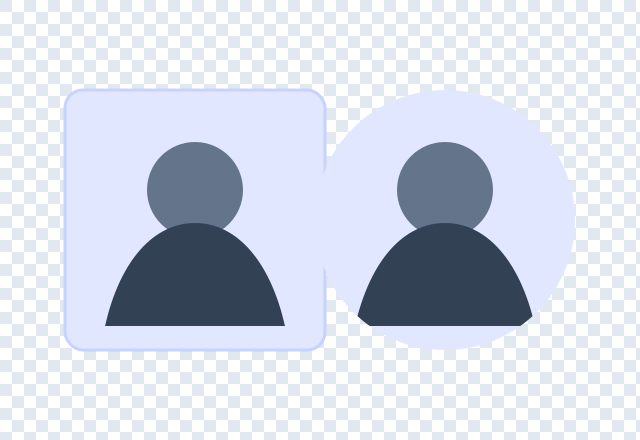
Remove the visible corners while keeping the center unchanged.

Choose PNG or WebP for reusable transparent corners.

Finish the conversion with a scalable circular ring.
A square-to-circle conversion keeps the square canvas but makes the four outer corners transparent or fills them with a background color. The visible diameter matches the square output size. Upload the source, confirm the center, and export in a format that supports the intended background.
No permanent change is made to the original file. The browser creates a new circle image when you download.
Fill circle is the common choice for photos because the subject occupies the complete round frame. Fit full image is useful for a square logo or artwork with important corner details, but extra background space is needed to keep those corners inside a circle.
The live preview makes this tradeoff visible. There is no single mode that can both fill a circle and preserve every corner of a square source.
Choose PNG or WebP when the new circle needs transparent outer corners. The checkerboard shows those pixels. Choose JPG only when a fixed square background is acceptable, because JPG cannot represent alpha transparency.
For logos and icons, PNG provides a reliable master. For photographic web assets, WebP can reduce file size while keeping transparent corners.
Round outputs fit profile pictures, team directories, testimonial cards, author bios, app icons, labels, and badges. Check the destination mask and leave enough safe spacing around faces or text.
If the source is rectangular rather than square, the same tool still works. Fill mode covers the circle, while Fit mode preserves the full rectangle with additional background space.
Continue with a focused tool
Choose a page with the default settings and guidance that match your next output.
Researched user questions
Direct answers cover formats, privacy, quality, mobile use, and the failure cases that cause most repeat edits.
Upload the square file, keep it centered or adjust the position, choose PNG or WebP, and download the circular result.
Fill mode removes the visible square corners outside the circle. Fit mode can preserve the full square inside the circle by adding background space.
Yes. PNG and WebP keep the outer corners transparent. JPG replaces those corners with the selected background color.
Yes. Increase Border width and choose a solid or gradient ring before downloading.
Yes. Raster images use a square canvas, while transparency or background color makes the visible subject circular.
Yes. The cropper can fill the circle with a rectangle or fit the complete source inside it. The square page focuses on the most predictable input shape.
Yes. The square to circle image converter is free, requires no signup, and creates the download locally in your browser.
Yes. Choose Original crop or enter a custom dimension. The square to circle image is redrawn from the source rather than captured from the preview.
Return to the editor, add your image, and download a clean result without signing up or uploading the source to a server.
Crop an image nowYour feedback helps make Crop Image Circle more useful and reliable.
Your message has been sent. We appreciate the time you took to help improve Crop Image Circle and will reply if a response is needed.